
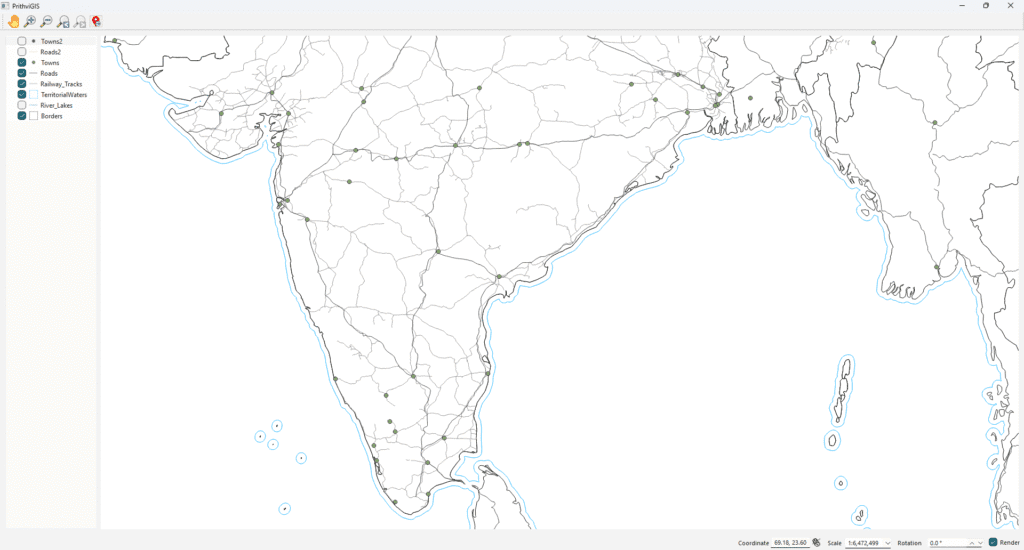
When developing custom GIS applications, a common requirement is to display vector maps with basic navigation options like zooming in/out, panning, navigating back/forward, and even rotating the map.
Using the QGIS API with Qt, we can achieve this in just a few steps. In this post, we’ll walk through a simplified example application that loads a shapefile and provides interactive controls for basic navigation.
Setting up the Map Canvas
First, we initialize a QgsProject and a QgsMapCanvas. The canvas is the widget where the map will be rendered.
// Create a QGIS project instance
mQGisProject = new QgsProject();
QgsProject::setInstance(mQGisProject);

// Create a map canvas (map display widget)
mMapCanvas = new QgsMapCanvas();
mMapCanvas->setProject(mQGisProject);
mMapCanvas->setDestinationCrs(QgsCoordinateReferenceSystem::fromEpsgId(4326)); // WGS84
ui->gridLayoutMapCanvas->addWidget(mMapCanvas);
Adding Toolbar Controls (Pan, Zoom, Back, Forward, Rotate)
We define actions for navigation tools and connect them to the map canvas.
// Define actions with icons
mActionPan       = new QAction(QIcon(":/images/pan.png"), "Pan", this);
mActionZoomIn    = new QAction(QIcon(":/images/ZoomIn.png"), "Zoom In", this);
mActionZoomOut   = new QAction(QIcon(":/images/ZoomOut.png"), "Zoom Out", this);
mActionZoomPrev  = new QAction(QIcon(":/images/ZoomLast.png"), "Zoom Prev", this);
mActionZoomNext  = new QAction(QIcon(":/images/ZoomNext.png"), "Zoom Next", this);

// Tools
mPanTool     = new QgsMapToolPan(mMapCanvas);
mZoomInTool  = new QgsMapToolZoom(mMapCanvas, false); // false = zoom in
mZoomOutTool = new QgsMapToolZoom(mMapCanvas, true);  // true = zoom out

// Add toolbar buttons
ui->toolBarMapTools->addAction(mActionPan);
ui->toolBarMapTools->addAction(mActionZoomIn);
ui->toolBarMapTools->addAction(mActionZoomOut);
ui->toolBarMapTools->addAction(mActionZoomPrev);
ui->toolBarMapTools->addAction(mActionZoomNext);

// Connect actions
connect(mActionPan,    &QAction::triggered, [this](){ mMapCanvas->setMapTool(mPanTool); });
connect(mActionZoomIn, &QAction::triggered, [this](){ mMapCanvas->setMapTool(mZoomInTool); });
connect(mActionZoomOut,&QAction::triggered, [this](){ mMapCanvas->setMapTool(mZoomOutTool); });
connect(mActionZoomPrev,&QAction::triggered,[this](){ mMapCanvas->zoomToPreviousExtent(); });
connect(mActionZoomNext,&QAction::triggered,[this](){ mMapCanvas->zoomToNextExtent(); });
Adding Rotation Support
Rotation is handled with a simple spin box that lets the user rotate the map in degrees.
// Rotation control
mRotationEdit = new QgsDoubleSpinBox();
mRotationEdit->setRange(-360.0, 360.0);
mRotationEdit->setSingleStep(5.0);
mRotationEdit->setSuffix(" °");

// Connect rotation control to canvas
connect(mRotationEdit, qOverload<double>(&QgsDoubleSpinBox::valueChanged), [this](double degrees){
    mMapCanvas->setRotation(degrees);
    mMapCanvas->refresh();
});

// Add rotation widget to toolbar
ui->toolBarMapTools->addWidget(mRotationEdit);
Loading a Vector Layer
To display data, we load a shapefile layer (e.g., Borders.shp) and add it to the project.
void MainWindow::addLayer() {
    QString strLayerPath(SHAPE_FILE_PATH);
    strLayerPath.append("Borders.shp");

    QgsVectorLayer *vectorLayer = new QgsVectorLayer(strLayerPath, "Borders", "ogr");

    if (vectorLayer->isValid()) {
        mLayers.append(vectorLayer);
        mMapCanvas->setExtent(vectorLayer->extent());
        mQGisProject->addMapLayer(vectorLayer);
        mMapCanvas->setLayers(mLayers);
        mMapCanvas->refresh();
    } else {
        qDebug() << "Layer is not valid: " << vectorLayer->error().message();
    }
}
Use Case
This simple application is useful when you need to:
- Load and view shapefiles or vector data
- Navigate the map with zoom, pan, and rotation
- Implement a lightweight custom GIS viewer without the full QGIS Desktop
It’s a great starting point for defense, aerospace, urban planning, or infrastructure projects where a tailored GIS viewer is required.
Next Steps
This was a minimal map viewer example using QGIS API + Qt.
For more advanced features like:
- Real-time data overlays (radar, GPS, IoT sensors)
- Database integration (PostgreSQL/PostGIS)
- Temporal playback and 3D display
- Custom analysis tools
👉 Explore our product PrithviGIS, developed by Manya Technologies, which uses QGIS as its backbone for delivering enterprise-grade GIS solutions.
📩 Contact us today to build custom GIS software tailored for your business needs.